

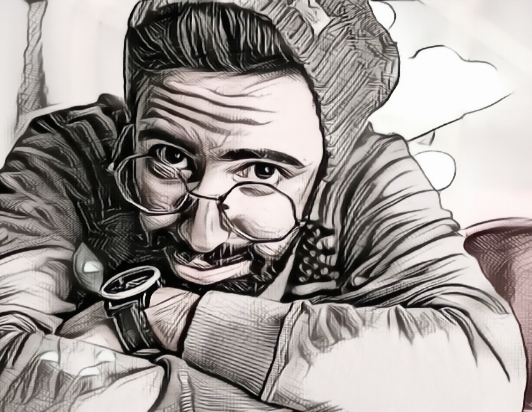
Turning a regular photo into a beautiful pencil sketch is one of the most popular digital art transformations today. Whether you want to create artistic portraits, unique social media posts, custom gifts, or creative designs, a Photo to Sketch Converter Online Free tool makes it incredibly simple. Even if you’re a complete beginner with zero editing experience, modern AI tools allow you to convert your photos into stunning sketch-style artwork instantly.
In this beginner-friendly guide, you’ll learn how photo-to-sketch converters work, why AI tools make sketching so easy, how to choose the best tool, and how to create perfect sketch art in just a few clicks. Let’s get started!
What Is an Online Photo to Sketch Converter?
A Photo to Sketch Converter Online is a digital tool that transforms any photo into a hand-drawn sketch. These tools use advanced algorithms or AI to replicate artistic styles like:
-
Pencil sketch
-
Charcoal
-
Outline drawing
-
Color sketch
-
Cartoon sketch
-
Realistic shading
Just upload your photo, select the sketch style, and let the tool do the magic. Within seconds, your image is turned into a sketch that looks professionally drawn.
Today’s AI-powered converters are so advanced that they can mimic real pencil strokes, shading depth, texture, and fine facial details.
Why Are Free Online Sketch Converters So Popular?
Many creators, designers, and casual users prefer free online sketch tools for several reasons:
No software needed
No Photoshop, no drawing tablet—just upload and convert.
Extremely fast results
Most AI sketch converters take just 2–5 seconds.
Beginner friendly
You don’t need drawing skills or editing knowledge.
Beautiful artistic effects
AI can turn even simple selfies into impressive sketches.
Works on any image type
Portraits, pets, scenery, products, buildings, and more.
No cost
You can use many tools 100% free.
For beginners, this is the easiest way to explore digital art without investing money or time in learning complex software.
How AI Converts a Photo Into a Sketch
Modern tools use machine learning and image processing to simulate hand-drawn sketches. Here’s how it works behind the scenes:
1. Edge Detection
AI identifies the outlines of the main objects—eyes, lips, hair, clothing edges, etc.
2. Texture Mapping
The tool analyzes texture areas like skin, fabric, fur, grass, etc., and converts them into sketch-like shading.
3. Light & Shadow Analysis
AI figures out which areas should be dark or light to create realistic pencil shading.
4. Sketch Style Simulation
Depending on the selected style (soft sketch, hard pencil, charcoal), AI applies specific artistic techniques.
5. Final Render
The finished output looks like it was drawn by an artist using pencil, charcoal, or ink.
This is why AI tools produce much better results than traditional filters found in basic editing apps.
Best Features to Look For in a Free Photo to Sketch Converter
Not all tools offer the same quality. As a beginner, you should look for these features to ensure perfect sketch results:
Multiple Sketch Styles
Pencil, charcoal, outline, color sketch, watercolor sketch.
High-Quality Output (HD)
The sketch should be sharp and detailed, not blurry.
AI-Powered Precision
AI ensures clean edges, accurate shading, and realistic textures.
Easy Upload Interface
A simple tool with drag-and-drop upload is ideal for beginners.
No Watermarks
Choose a tool that keeps the sketch clean without branding.
Fast Processing
Look for tools that convert your photo in less than 5 seconds.
Free to Use
Many platforms provide high-quality free conversions without forcing subscription.
Tools like Pixele Studio, Fotor, and SketchMyPhoto offer excellent free sketch conversions for beginners.
Types of Sketch Styles You Can Create
A good Photo to Sketch Converter Online Free usually provides multiple artistic styles. Here’s a breakdown of the most popular ones:
1. Pencil Sketch (Black & White)
Classic hand-drawn pencil style—perfect for portraits and illustrations.
2. Soft Sketch
Smooth shading, gentle outlines, artistic texture.
3. Charcoal Sketch
Darker, bold strokes that resemble charcoal drawings.
4. Color Sketch
Retains some original colors while adding sketch textures.
5. Ink Outline
Clean black outlines—ideal for cartoons and line art.
6. Vintage Sketch
Sepia tones and old-school art effects.
Each style gives your photo a different mood and personality.
Step-by-Step Guide: Convert Photo to Sketch Online (For Beginners)
Follow these simple steps to create professional sketch artwork—even if it’s your first time.
Step 1: Choose a Reliable Free AI Sketch Converter
Some beginner-friendly tools include:
-
Pixele Studio Photo to Sketch Converter
-
Fotor Sketch Maker
-
Lunapic Sketch Filter
-
Befunky Sketch Editor
-
Photomania
Pixele Studio is one of the easiest and most accurate options for beginners.
Step 2: Upload Your Photo
Use a clear and high-quality image for best results.
Ideal photos include:
Portraits
Selfies
Couple photos
Pet photos
Product photos
Landscape images
Avoid blurry or extremely dark photos.
Step 3: Choose Your Sketch Style
Select from pencil sketch, color sketch, charcoal, or outline drawing.
Most tools offer an instant preview.
Step 4: Adjust Sketch Strength (Optional)
Some tools let you adjust:
-
Line thickness
-
Shading depth
-
Contrast
-
Highlights
This lets you customize your sketch exactly how you want.
Step 5: Download Your Sketch Image
Once you’re satisfied, download the final image in HD.
You now have a beautiful, artistic sketch with zero drawing effort!
Creative Ways to Use Sketch Conversions
Sketch-style images aren’t just for fun—they can be used creatively in many ways:
Social Media Posts
Make eye-catching artistic posts for Instagram, TikTok, or Facebook.
Custom Gifts
Turn photos into sketch-style art for frames, mugs, posters, or greeting cards.
Digital Art Projects
Use sketches for branding, illustrations, or book covers.
Website Graphics
Add a unique artistic touch to your web designs and portfolios.
Personal Profile Photos
Stand out with artistic sketch-style profile pictures.
Photo Restoration
Sketch filters can enhance old or low-quality images.
Tips for Getting the Best Sketch Results
Follow these simple tips for the cleanest, most realistic sketch effects:
Use High-Resolution Photos
The clearer the image, the sharper the sketch.
Make Sure the Face is Well-Lit
Avoid photos with heavy shadows.
Keep Background Simple
Busy backgrounds may confuse the AI.
Avoid Filters
Natural photos produce the best sketch lines.
Use Front-Facing Photos
Side angles may distort sketch outlines.
Why AI Sketch Converters Are Perfect for Beginners
If you’re new to digital art, AI tools help you:
Learn Sketch Styles Quickly
You can instantly see how different sketch techniques look.
Explore Creativity Without Skills
No drawing ability needed AI handles everything.
Save Time
Instead of hours of manual drawing, you get results in seconds.
Gain Confidence
Beginners can produce professional-looking sketches instantly.
Final Thoughts
Converting a photo into a sketch has never been this easy. With powerful AI tools and free online platforms, anyone can create stunning artistic transformations without learning complex software. A Photo to Sketch Converter Online Free is perfect for beginners who want fast, high-quality, and creative results.
Whether you’re making art for fun, social media, gifting, or professional projects, these tools simplify the entire process. Try different sketch styles, play with effects, and unleash your creativity—AI makes everything effortless.